Options Panel
Description
The Options panel replaces the old “Extras” panel. It handles configuration of the presets folder, installation of built‑in examples, import of legacy V1 macro sets, and debug settings.
The Options panel is used for:
Installing the default preset examples (located in the extension’s assets/Macros_Presets folder).
Changing the folder where macro sets are stored.
Opening the presets folder in your file explorer.
Importing legacy macro sets from .blend files (V1 format) and converting them to JSON.
Enabling debug mode and toggling the system console.
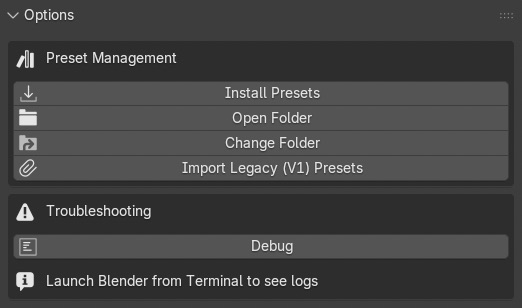
The Options panel.
Panel Components
Preset Management
Install Presets – Copies the built‑in example macro sets from the addon’s assets folder into your chosen presets folder. This button only appears when no presets are found.
Open Folder – Opens the current presets folder in your operating system’s file browser.
Change Folder – Lets you select a different folder for storing macro sets. The path is saved in assets/presets_location.json.
Import Legacy (V1) Presets – Opens a file browser to select a .blend file. All text blocks whose names start with mac_ are converted to JSON macro sets and placed in a Legacy subfolder of your presets folder.
Troubleshooting
Debug – Enables detailed console logging. Warning: This will slow down the extension.
Toggle Console (Windows only) – Opens or closes the system console. On Linux / macOS, you need to launch Blender from a terminal to see logs.
Note
The first time you open the Options panel, you will be prompted to Install Presets or Change Folder. Once a valid presets folder exists, the panel will show the full set of management buttons.
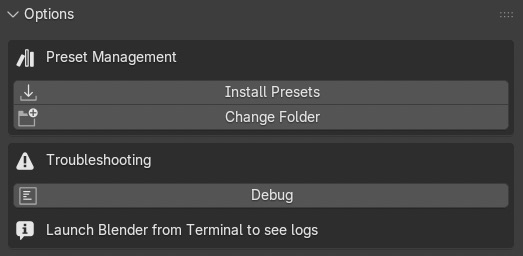
The Options panel before configuring a presets folder.